
Technical Solution Problem 12: Logged-Out Visitors See an Old or Broken Website
Welcome to Sydney Business Web Technical Solutions Problem 12: Logged-Out Visitors See an Old or Broken Website | Sydney Business Web
Every day, we solve problems for eCommerce website owners. We had a think about how we might use this activity to help others, and came up with this idea: Every week or three, we'll take the trickiest problem and publish our solution.
Important! - Some of these solututions involve adding code to your website (WordPress and Woocommerce mostly), so please ALWAYS be careful. We are not in any way responsible, directly or indirectly for any impact or consequences our code or advice has on your website, nor are we liable for any damage arising from such use.
Always back up your website before changing or adding code and/or editing the database, This is critically important!!!
PROBLEM 12: Technical Solution Problem 12: Logged-Out Visitors See an Old or Broken Website
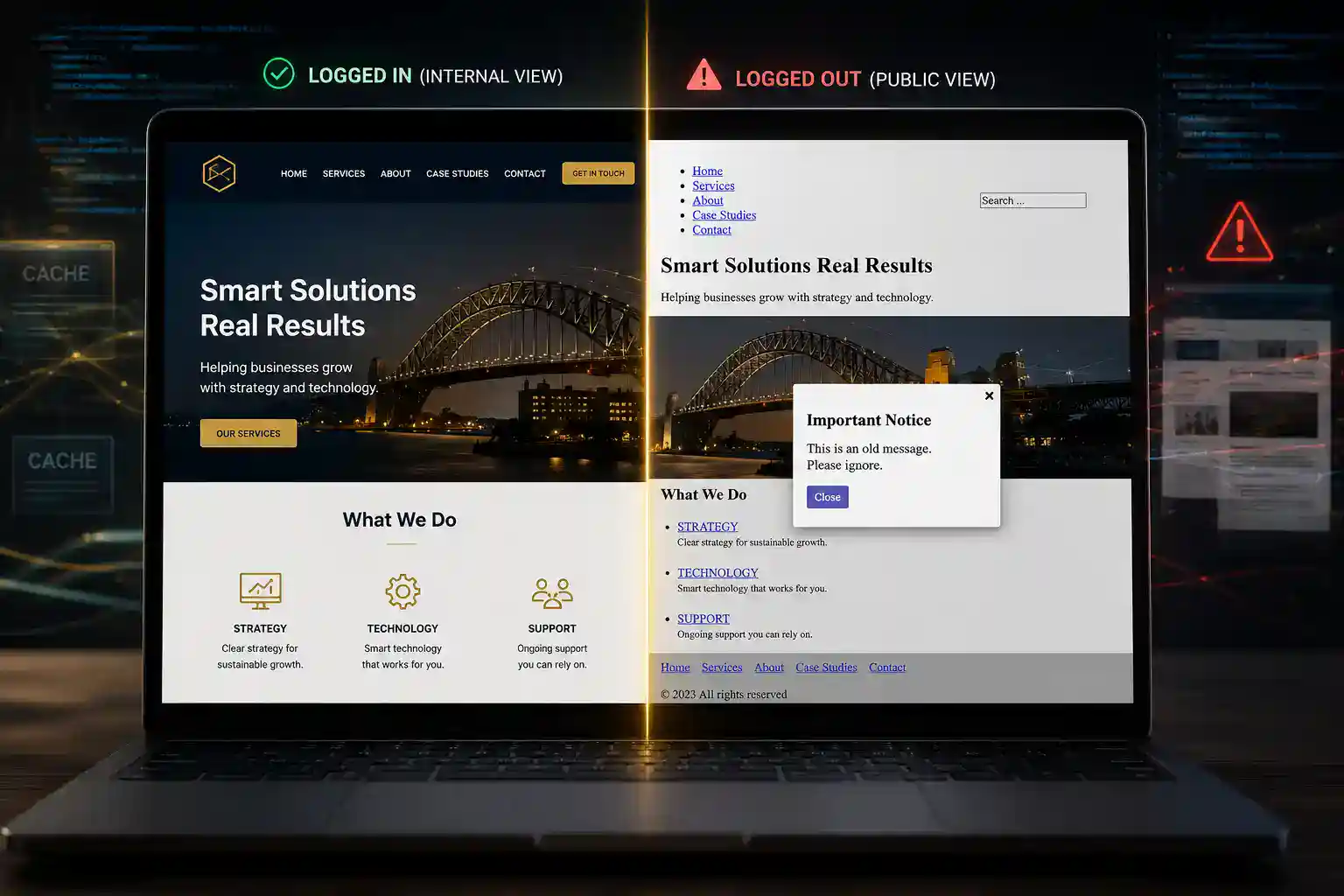
When a Website Is Broken When Logged Out, But Looks Fine to the Owner
One of the more deceptive website faults is the one that hides from the person trying to fix it. You log in to WordPress, open the page in the editor, check the header, check the footer, inspect the popup, and everything looks right. Then you log out, view the same page as an ordinary visitor, and the website falls apart.
That is exactly the kind of problem covered in this technical solution. The website looked correct inside WordPress. The edited popup showed the latest version. The page structure appeared intact. But when the site was viewed by a normal logged-out visitor, the header and footer lost their styling, the layout looked damaged, and an old uncorrected popup appeared instead of the current one.
To a business owner, this can look like a design failure. It is tempting to rebuild the header, recreate the footer, blame the theme, blame the page builder, or start randomly disabling plugins. But that is not diagnosis. That is guessing.
In this case, the real clue was simple but powerful. When ?nocache=1 was added to the end of the page URL, the website immediately displayed correctly. That meant the live WordPress page was not actually broken. Instead, logged-out visitors were being served an old cached version of the page.
A website problem is not fixed when it looks right to the administrator. It is fixed when ordinary visitors see the correct version too.
Why This Problem Is So Easy to Misdiagnose
A website broken when logged out can send people in completely the wrong direction. The natural reaction is to blame whatever is visible on the screen. If the header is broken, rebuild the header. If the footer has lost its styling, edit the footer. If a popup shows old text, open the popup and save it again.
That can waste hours, because the visible damage is not always the source of the fault. In this case, changing the header made no difference. Trying another header made no difference. Disabling non-essential plugins made no difference. Clearing normal browser and site cache made no difference. The website still looked correct while logged in and broken while logged out.
That difference matters. Logged-in users and logged-out visitors do not always receive the same version of a WordPress page. Logged-in administrators often bypass cache, while ordinary visitors may be served a stored public version. That means the site owner can be looking at the current website while customers are seeing an older, damaged or incomplete copy.
The important diagnostic question was therefore not, “Why is the header broken?” It was, “Why are logged-out visitors being given a different version of the website?” Once that question was asked, the fault became much easier to trace.
When a website looks different to the owner than it does to the public, the problem may not be the design. It may be the version being served.
The First Step Was to Prove Whether the Website Was Really Broken
The first mistake in this kind of situation is to assume that the visible damage is the real problem. In this case, the header looked broken, the footer looked wrong, and the public version of the page was clearly not behaving properly. But the page itself still looked correct inside WordPress, so rebuilding the design would have been the wrong first move.
The sensible first step was to compare what different users were actually seeing. While logged in, the website looked right. When logged out, the same page looked wrong. The problem also appeared in more than one browser, which made it unlikely to be a simple local browser glitch.
Next, the usual suspects were removed from the investigation. Front-end optimisation was switched off. Browser cache was cleared. Another header was tested. Non-essential plugins were disabled. None of that fixed the issue. That was important, because it told us the problem was probably not a normal plugin conflict and probably not a damaged Thrive header or footer.
Then came the critical clue. A recently edited popup still showed its old uncorrected version when viewed by a logged-out visitor. That meant the public visitor was not seeing the current saved page. They were seeing an older version of it.
At that point, the investigation changed direction. The question was no longer, “Why is the page broken?” The better question was, “Why is the public visitor being served an old version of the page?”
The old popup was the giveaway. If a visitor sees old content, the fault may be in the delivery path, not in the page editor.
The Cache Test That Changed the Direction of the Investigation
The next step was to test whether the public version of the page was being served from cache. This was done by adding a simple query string to the end of the URL:
?nocache=1
That one small test changed the whole investigation. With ?nocache=1 added to the URL, the page displayed correctly. The header loaded properly. The footer styling returned. The corrected popup appeared. In other words, the live WordPress and Thrive version of the website was fine.
That meant the fault was not in the visible page design. It was not caused by a bad header, a damaged footer, or a failed popup edit. The problem was that ordinary logged-out visitors were being given an old stored version of the page instead of the current one.
At this stage, the investigation moved away from the page builder and into the delivery path. The question became: where was that old version coming from?
The obvious place to check was the hosting cache. The site was on shared hosting, and the control panel showed LiteSpeed cache tools. The cache was flushed. Then the WordPress cache status was checked. But the problem did not go away, and the WordPress cache was shown as disabled.
That was another useful clue. It meant the stale version was probably not coming from the visible LiteSpeed WordPress cache setting. Something older or less obvious was still interfering with the public version of the site.
The ?nocache=1 test proved that the website itself was not broken. The wrong version was being served to visitors.
Following the Trail Into the Hosting Files
Once the usual cache controls did not solve the problem, the investigation had to move deeper. The site was a normal WordPress site running from a hosting account, so the next question was whether something inside the hosting account was still controlling the public version of the page.
That led to the site’s .htaccess file. This file can contain important WordPress rewrite rules, but it can also contain old instructions left behind by previous caching plugins, security tools, redirects, image tools, or manual performance tweaks.
In this case, the .htaccess file was much larger than expected. It still contained old WP Rocket cache rules, even though WP Rocket was no longer being used as the active cache system. Those rules were capable of serving cached HTML files directly to logged-out visitors before WordPress had a proper chance to generate the current page.
That explained the strange behaviour. Logged-in users bypassed the stale public cache and saw the current site. Logged-out visitors received an older cached version. Adding ?nocache=1 bypassed the old rewrite rule, which is why the page immediately displayed correctly.
The repair was not to rebuild the website. The repair was to remove the obsolete cache instructions, restore a clean WordPress .htaccess structure, and stop the server from serving the old stored version of the page.
Sometimes the broken website is not in the editor at all. It is in an old server instruction still telling visitors to load yesterday’s version.
The Fix: Remove the Old Cache Instructions and Let WordPress Serve the Current Site
The repair was straightforward once the cause was found, but it still had to be done carefully. The existing .htaccess file was backed up first, because that file controls important server behaviour and should never be casually overwritten without a recovery copy.
The obsolete WP Rocket cache block was then removed, along with the old manual cache rules that were telling browsers and visitors to hold on to HTML pages for far too long. After that, the file was reduced back to a clean standard WordPress rewrite structure.
The remaining cache debris also had to be checked. Old cache folders under wp-content/cache/ and any unused cache drop-in files, such as advanced-cache.php, can continue to cause confusion if they are left behind after a caching plugin is removed.
Once the old rules were gone, the website immediately behaved normally. The public logged-out version matched the current WordPress version. The header and footer loaded correctly. The corrected popup appeared. The problem had not required a page rebuild, a theme rebuild, or a blind plugin purge. It required finding the stale instruction that was still controlling what visitors saw.
The fix was not to redesign the page. The fix was to stop the server from serving an old copy of it.
Step-by-Step Diagnosis: What We Tested and What It Proved
The important part of this repair was not luck. It was a sequence of tests, each one eliminating a wrong explanation until the real cause was exposed.
| Test | Result |
|---|---|
| Viewed the site while logged in | The page looked correct, so the saved design was probably not broken. |
| Viewed the site while logged out | The header and footer styling failed, and the public version looked damaged. |
| Tested in more than one browser | The problem appeared in both browsers, so it was not just a local browser fault. |
| Checked whether an active cache plugin was running | There was no active cache plugin on the site, which made the fault less obvious. |
| Disabled non-essential plugins | The issue remained, so a simple plugin conflict was unlikely. |
| Checked the edited popup | Logged-out visitors still saw the old popup, proving they were not receiving the current page. |
Added ?nocache=1 to the URL |
The page displayed correctly, proving the live WordPress site was fine and the public version was stale. |
| Flushed the server cache from cPanel | The problem remained, so the visible hosting cache control was not the source of the stale page. |
| Checked the WordPress cache status in cPanel | The WordPress cache was shown as disabled, which pointed away from the normal LiteSpeed cache setting. |
Inspected the .htaccess file |
Old WP Rocket and manual cache rules were still present and serving stale public pages. |
Conclusion: The Page Was Not Broken — The Wrong Version Was Being Served
This problem looked like a failed header, a broken footer, or a Thrive Theme Builder issue. It was none of those things. The live WordPress site was correct, but logged-out visitors were being sent an old cached version through obsolete rules left behind in the site’s hosting files.
That is what made the fault so deceptive. There was no active cache plugin on the site, and the visible server cache had already been flushed from cPanel. Even so, old cache instructions were still sitting in the .htaccess file and controlling what ordinary visitors received.
That is why proper website troubleshooting matters. A visible fault is only a symptom. The real job is to find the layer responsible for creating it.
Good technical support does not guess harder. It tests carefully until the false explanations fall away.
What Business Owners Should Learn From This
This case is a useful warning because the symptoms were misleading. The website appeared to have a design problem, but the design was not the cause. It appeared to have a cache problem, but there was no active cache plugin. The server cache was flushed from cPanel, but the fault still remained.
The real issue was an old instruction left behind in the hosting files. That instruction was still affecting what logged-out visitors received, even though the active WordPress setup had moved on.
That is why technical website support needs more than plugin-toggling and guesswork. A modern WordPress site can involve the page builder, theme files, plugins, generated CSS, browser cache, server cache, rewrite rules, security tools, hosting configuration and old debris left behind by previous tools. The visible problem is often only the surface.
At Sydney Business Web, this is the kind of work we are comfortable with. We do not just ask whether the page looks broken. We ask which version is being served, who is seeing it, what layer is producing it, and why.
If your website looks right to you but wrong to your customers, the first job is not to rebuild it. The first job is to find out which version your customers are actually being shown.
Frequently Asked Questions About Websites That Look Broken When Logged Out
Why does my website look fine when I am logged in but broken when I log out?
This usually means you are not seeing the same version of the website as ordinary visitors. Logged-in administrators may bypass cache, while logged-out visitors may be served an older cached version of the page. The live WordPress page may be correct, but the public version being delivered may be stale or damaged.
Does this mean my WordPress page or design is broken?
Not necessarily. If the page looks correct in the WordPress editor and also looks correct when cache is bypassed, the design itself may be fine. The problem may be that visitors are being shown an old version of the page rather than the current one.
Why would logged-out visitors see an old version of my website?
This can happen when an old cache system, server rule, hosting cache, browser cache, CDN cache, or leftover plugin instruction is still serving stored files. In some cases, old rules remain in files such as .htaccess even after a cache plugin has been removed.
Can this happen even if there is no active cache plugin?
Yes. That is one reason this problem can be difficult to diagnose. A cache plugin may no longer be active, but old cache folders, drop-in files, rewrite rules, or server-level cache settings may still affect what visitors receive.
What does ?nocache=1 prove?
Adding ?nocache=1 to the end of a page URL is a useful diagnostic test. If the page suddenly displays correctly, it strongly suggests that the live website is working but the normal public view is being affected by cache or stale delivery rules.
Why did flushing the hosting cache not fix the problem?
Flushing the visible hosting cache only clears the cache controlled by that tool. If the stale version is being served by old rules in .htaccess, old cache files, a CDN, or another server-level mechanism, the normal hosting cache flush may not touch the real source of the problem.
Why would the header and footer lose their styling?
A broken header or footer can be caused by missing CSS, stale cached HTML, outdated asset references, or old generated files. The visible symptom may look like a theme or page builder fault, but the real problem may be that the browser is receiving an old or incomplete version of the page.
Should I rebuild the header, footer or page if this happens?
Usually not as a first step. Rebuilding visible elements can waste time if the real fault is stale cache or old server instructions. The better first step is to compare logged-in and logged-out views, test in more than one browser, bypass cache, and inspect the delivery path.
What is the risk of leaving old cache rules in place?
Old cache rules can cause visitors to see outdated content, broken styling, old popups, incorrect prices, missing updates, or damaged layouts. They can also make troubleshooting harder because the administrator may see the correct version while customers see something completely different.
How should this kind of website problem be fixed?
It should be fixed by diagnosis, not guesswork. The correct process is to identify who sees the broken version, test whether cache is involved, check hosting cache controls, inspect relevant files such as .htaccess, remove obsolete rules carefully, and confirm that ordinary logged-out visitors now receive the current version of the site.
External References
These references are included for readers who want to understand the technical layers behind this kind of WordPress fault: cache rules, server-level caching, browser cache behaviour, and the role of the .htaccess file.
WordPress Developer Resources: Apache HTTPD and .htaccess
Useful for understanding why WordPress uses the .htaccess file and how a corrupted or overloaded version of that file can affect a site.
WP Rocket: Rules in the .htaccess File
This explains how WP Rocket can add rules to .htaccess, including rules that redirect requests to cached pages. That is directly relevant to this case.
WP Rocket: Page Caching
This is useful background on how cached page files are stored and served. It helps explain why visitors may receive a stored page instead of the live WordPress output.
GreenGeeks: Clearing LiteSpeed Cache from cPanel
This is relevant because the server cache was checked and flushed from cPanel during the investigation. In this case, that visible cache flush was not enough to solve the issue.
LiteSpeed: LSCache for WordPress
This gives broader context on how LiteSpeed cache interacts with WordPress and why cache behaviour can involve both the application and the server.
Chrome DevTools: Inspecting and Clearing Caches
Useful for diagnosing browser-side and network cache behaviour when a site looks different in different viewing conditions.
Internal Sydney Business Web References
These related Sydney Business Web articles expand on the same theme: business websites are not just visual designs. They are technical systems, and when something fails, the repair needs proper diagnosis.
WordPress Custom Code: Why Code Still Matters in a CMS World
Useful companion reading for this case, because many website faults cannot be solved from a theme panel. Sometimes the issue sits in rules, code, generated files or server instructions.
Anatomy of an Australian Business Website
A broader look at what makes a proper Australian business website work, beyond appearance alone. Good context for understanding why technical structure matters.
Business Websites, eCommerce and SEO
The main Sydney Business Web blog hub for business websites, eCommerce, SEO and technical website thinking. A useful next stop for readers who want the wider picture.
What Is Technical SEO?
Technical SEO is not just about rankings. It includes the structural and technical health of a site, including crawlability, performance, page delivery and clean implementation.
Website Speed Optimisation: Video-Rich Homepage Hits 93% GTmetrix
Performance work and cache behaviour are closely related. This article shows how technical decisions affect what visitors actually experience on a live website.
17 Questions to Ask Your Web Developer
A practical article for business owners who want to know whether their web developer understands more than layout and appearance.
CONTACT SYDNEY BUSINESS WEB NOW!