
Technical Solution Problem 11: Backing Up WordPress Sites on a VPS with cPanel and WHM | Sydney Business Web
Welcome to Sydney Business Web Technical Solutions Problem 11: Backing Up WordPress Sites on a VPS with cPanel and WHM | Sydney Business Web
Every day, we solve problems for eCommerce website owners. We had a think about how we might use this activity to help others, and came up with this idea: Every week or three, we'll take the trickiest problem and publish our solution.
Important! - Some of these solututions involve adding code to your website (WordPress and Woocommerce mostly), so please ALWAYS be careful. We are not in any way responsible, directly or indirectly for any impact or consequences our code or advice has on your website, nor are we liable for any damage arising from such use.
Always back up your website before changing or adding code and/or editing the database, This is critically important!!!
PROBLEM 11: Uploading Sensitive Data Securely
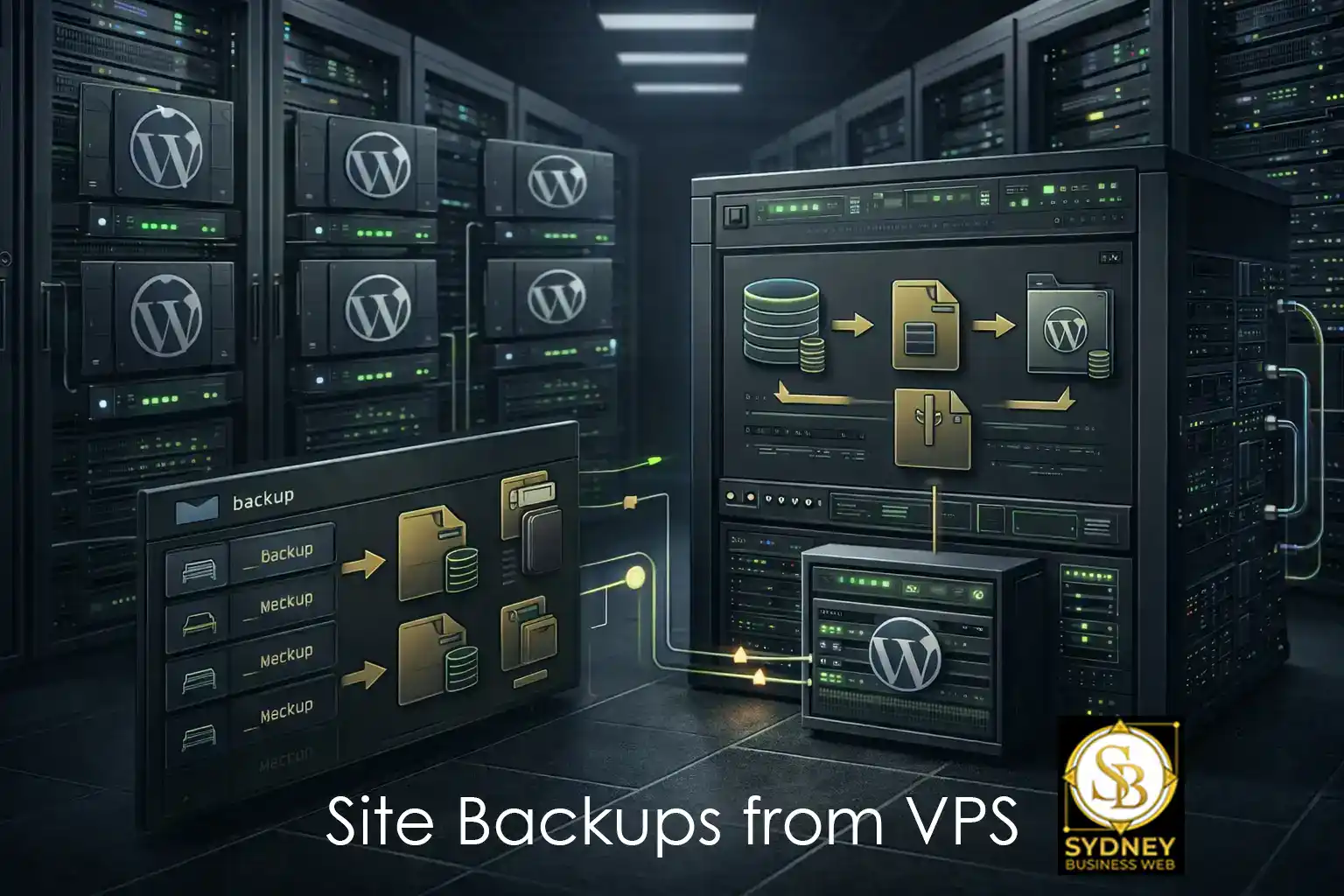
Backing Up WordPress Sites on a VPS Is Not Something to Leave to Chance
When you run customer WordPress sites on a VPS, backup responsibility changes immediately. You are no longer just sitting on ordinary shared hosting and assuming somebody else has everything covered in the background. You are now responsible for making sure each site can be recovered properly, quickly, and without chaos.
That matters more than many people realise. A WordPress site is not just a few files sitting in public_html. It is themes, plugins, media uploads, databases, settings, email configuration, account structure, and all the small moving parts that make a live business website function. If one of those customer sites breaks during an update, a server issue, or a staging mistake, you do not want vague reassurance. You want a recovery path.
This is where cPanel and WHM become genuinely valuable on a VPS. Used properly, they let you create structured account backups, retain them sensibly, and restore a single customer site when needed instead of treating the whole server like a smoking crater. That distinction matters when you are looking after multiple live WordPress websites for paying clients.
In this article, I want to look at backing up WordPress sites on a VPS in a practical way. We will cover what should be backed up, how cPanel and WHM fit together, why retention settings matter, how local storage can quietly become a problem, and why off-server backup storage should form part of the longer-term plan.
What Changes When You Move WordPress Sites to a VPS
On shared hosting, backups often exist in the background whether you think about them or not. On a VPS, that assumption disappears. You gain control, but you also inherit responsibility. If something goes wrong, there is no invisible safety net unless you have deliberately put one in place.
For agencies or businesses running multiple WordPress sites, this is not a small shift. Each site represents a live business asset. If one breaks, you do not want to be reconstructing it from memory, partial exports, or outdated copies. You want a clean, recent, and complete restore point.
This is where the structure of cPanel accounts under WHM becomes extremely valuable. Each WordPress site typically lives inside its own account. That means backups are not just a pile of files - they are organised, account-level archives that can be restored individually. If one customer site fails, you can restore that account without touching the rest of the server.
That distinction - single-site recovery instead of full-server rollback - is what turns a bad situation into a manageable one.
What Actually Gets Backed Up for a WordPress Site
A proper cPanel account backup is not just a file copy. It captures the working parts of a WordPress site in a way that allows it to be restored as a functioning system.
For a typical WordPress installation, that includes:
- Website files in
public_html(themes, plugins, core files) - Media uploads (images, PDFs, video assets)
- MySQL databases (posts, pages, settings, WooCommerce data, etc.)
- Configuration and account-level settings
- Email configuration and related account data (if used)
In practical terms, that means a successful backup gives you everything needed to recreate the site in a working state. Not just the appearance, but the underlying data and structure that make it function.
This is why account-level backups in WHM are so powerful. They bundle the moving parts together into a restore-ready unit, rather than leaving you to piece together files and databases separately under pressure.
Backup Types in WHM (And What They Actually Mean)
WHM gives you three main backup types: Compressed, Uncompressed, and Incremental. They sound straightforward, but the choice has real implications for disk usage, speed, and long-term practicality.
- Compressed – smaller on disk, slower to create. This is usually the sensible choice when VPS storage matters.
- Uncompressed – faster to create, but significantly larger. Rarely ideal on a space-constrained VPS.
- Incremental – only stores changes after the first full backup. Efficient locally, but comes with limitations for remote storage.
For most WordPress VPS setups, compressed backups with tight retention are the safest starting point. They give you complete account-level recovery without consuming excessive disk space.
Incremental backups can be useful later, particularly if you are backing up to another server using rsync, but they are not a universal solution. They trade flexibility for efficiency, which is not always what you want when dealing with client sites.
Why Retention Settings Matter More Than You Think
Backup retention is where many VPS setups quietly go wrong. It is easy to enable backups and then forget about how many copies are being stored.
A single full backup of multiple WordPress sites can easily run into tens of gigabytes. Multiply that by several retained copies, and your VPS disk space can disappear faster than expected.
A sensible temporary setup is:
- Daily backups enabled
- Retention set to 1
- Strict retention enforcement enabled
That gives you a rolling safety net without turning your VPS into a storage archive. Once you move backups off-server, you can revisit this and expand your retention strategy more safely.
The key point is simple: backups are not just about creating copies — they are about controlling how many copies exist and where they live.
Local Backups vs Remote Storage (And Why Local Is Not Enough)
The backup you have just created locally on your VPS is important. It gives you immediate recovery capability and proves that your backup process actually works. But it is only the first step.
A local backup stored on the same VPS protects you from mistakes, updates gone wrong, or a single site failure. It does not protect you from server-level issues such as disk failure, corruption, or a catastrophic hosting problem.
That is why a proper backup strategy always moves beyond local storage. The long-term objective is simple:
- Keep a minimal local backup for fast recovery
- Store additional backups off the VPS
WHM supports multiple remote destinations, including external servers, cloud storage platforms, and rsync targets. The exact choice matters less than the principle: your backups should not live only on the system they are protecting.
Once you move to remote storage, you can reduce local retention further and free up VPS disk space without sacrificing safety.
Restoring a Single WordPress Site (Without Touching the Rest)
One of the biggest advantages of using cPanel and WHM is the ability to restore a single account rather than rolling back the entire server.
Each WordPress site typically lives inside its own cPanel account. When that account is backed up, it becomes a self-contained unit that can be restored independently.
That means if one customer site breaks:
- You can restore that specific account
- The other sites on the VPS remain untouched
- Recovery is faster, cleaner, and far less disruptive
This is a critical operational advantage. Instead of treating the server as a single fragile system, you gain controlled, targeted recovery at the account level.
For agencies managing multiple WordPress sites, this is the difference between a contained incident and a full-scale outage.
A Sensible Backup Setup for WordPress Sites on a VPS
If you are running multiple customer WordPress sites on a VPS, you don't need an overly complex backup system to start with. You need something that works reliably, uses disk space sensibly, and gives you a clean recovery path.
A practical, no-nonsense starting point looks like this:
- Backup Type: Compressed
- Schedule: Daily
- Retention: 1 local backup
- Strict Retention: Enabled
- User Accounts: Enabled
- Suspended Accounts: Disabled (if not needed)
- Databases: Per account
- System Files: Optional (often disabled for space)
This setup gives you a rolling, complete backup of all active WordPress sites without filling your VPS with redundant data. It is not the final state, but it is a safe and controlled baseline.
From there, the next step is to introduce remote storage and expand your retention strategy without relying on local disk space.
Final Thoughts: Backups Are Control, Not Convenience
Backing up WordPress sites on a VPS is not something you set once and forget. It is part of running a stable, professional hosting environment.
The moment you move away from shared hosting, you take control — and with that comes responsibility. The tools are there in cPanel and WHM, but they only become valuable when they are configured and used properly.
A working backup is not a theory. It is something you can run, verify, and restore from when needed. Once you have that in place, everything else — staging, updates, optimisation, even experimentation — becomes far less risky.
In simple terms: if you can restore a customer site quickly and cleanly, you are in control. If you cannot, you are relying on luck.
Before You Update or Touch a Live WordPress Site
- Confirm your last WHM backup completed successfully
- Check you have at least one recent restore point
- Verify backup storage is not full
- Know which cPanel account the site lives in
- Be clear on how you would restore that account if needed
This article is based on real-world VPS management, not theory. The difference becomes obvious the first time you actually need to restore a site.
Frequently Asked Questions
Why do WordPress sites on a VPS need a more deliberate backup strategy?
Once you move WordPress sites onto a VPS, backup responsibility becomes far more direct. You are no longer relying on the assumptions people often make on shared hosting. You need a backup regime that is configured, verified, and capable of restoring a site properly when something goes wrong.
Does a WHM backup include the full WordPress site, including uploads and database?
Yes. A proper cPanel account backup under WHM can include the website files, themes, plugins, media uploads, and the MySQL database. In practical terms, that means the backup contains the working parts needed to recreate the site as a functioning WordPress installation.
Can one customer WordPress site be restored on its own?
Yes. One of the major strengths of cPanel accounts under WHM is that a single account can be restored independently. If one customer site fails, you do not need to roll back the entire VPS. You can restore that account while leaving the other hosted sites untouched.
Should backups be kept only on the VPS itself?
No. A local VPS backup is an important first step, but it should not be the long-term end point. Local backups help with quick recovery, but proper protection also requires off-server storage so that backups are not sitting only on the same system they are meant to protect.
What is a sensible starting backup setup for multiple WordPress sites on a VPS?
A sensible starting point is compressed daily backups, retention set to one local copy, strict retention enabled, per-account database backups, and active customer accounts included. That gives you a clean recovery position without allowing backup storage to consume excessive VPS disk space.
CONTACT SYDNEY BUSINESS WEB NOW!