
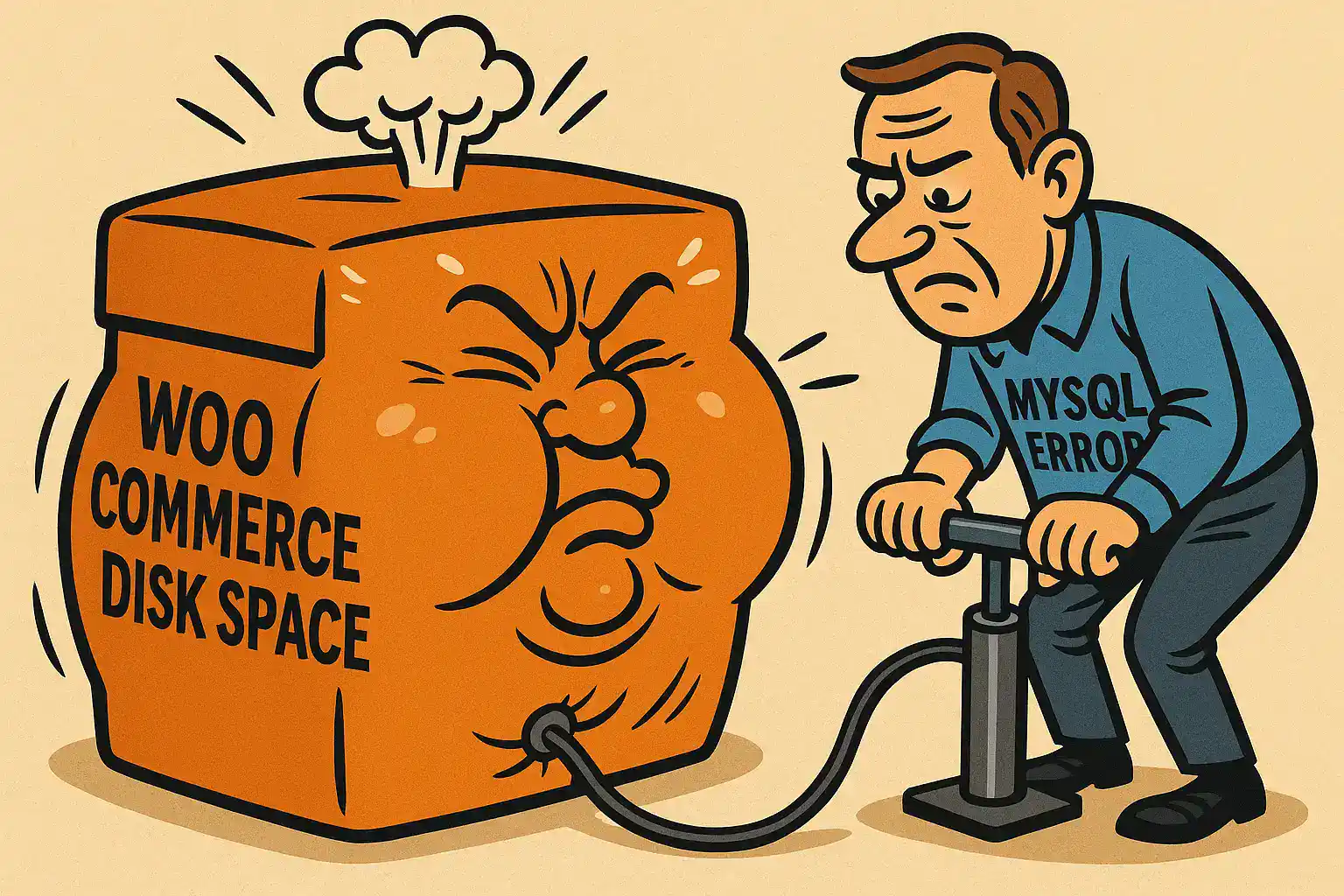
When Your WooCommerce Disk Space Is Suddenly “Full”
If you run a WooCommerce store long enough, you’ll eventually get that dreaded notice in your hosting panel: “WooCommerce disk space full”. On one client site, the warning arrived out of the blue. Nothing major had changed – no big new product imports, no media dump – yet the hosting account was chewing through gigabytes as if someone had turned on a tap.
A quick look at the account confirmed the problem: the site itself wasn’t that large, but the
error_log file was ballooning. In our case, it was growing by around
20 MB per hour. At that rate, WooCommerce disk space full is not a figure of speech,
it’s a matter of days. Backups get bigger, restores get slower, and sooner or later the site will hit its
hosting limits at the worst possible time.
This article is a short case study of what we found, how we fixed it, and what you can do if your own WooCommerce store starts eating disk space far faster than it should.
Chasing the Bloat: Why Is My WooCommerce Disk Space Full?
The first stop was the hosting file manager. Themes, plugins and uploads all looked normal for a busy
WooCommerce shop. The real offender was sitting quietly in the site root: error_log, already
hundreds of megabytes in size and growing every few minutes.
Opening the file made the pattern obvious. The same database error was being logged over and over:
WordPress database error Table 'prefix_actionscheduler_actions'
is marked as crashed and should be repaired for query
SELECT a.action_id FROM prefix_actionscheduler_actions a
WHERE a.hook = 'woocommerce_pdf_invoice_delete_files' ...
Different hooks, same message: a single table – the Action Scheduler actions table – was marked as
crashed. WooCommerce, extensions, and even some core WordPress routines rely on Action Scheduler for
background jobs, so every page load and every cron run was trying (and failing) to touch that table.
Each failed attempt meant another line in error_log. For many store owners, this is exactly
when the hosting panel starts shouting “WooCommerce disk space full”.
In other words, the store didn’t suddenly become huge overnight. A low-level MySQL glitch clipped one high-traffic table, and the resulting stream of database errors quietly filled the disk. Next step: repair the table and then clean up the mountain of old scheduled actions left behind.
Before You Touch the Database: Read This First
If you break your database, you can take your entire WooCommerce site offline in a single click. Deleting the wrong rows, the wrong table, or working on the wrong database is all it takes.
Even with a good backup, you will lose any new data (orders, customers, settings) created after that backup was taken. If you have no backup at all and you damage the database, your site may be effectively lost until it is rebuilt from scratch.
Always:
- Take a full database backup (and know how to restore it) before running any SQL.
- Check the database name and table prefix twice so you are working on the correct site.
- Ask an expert if you are not completely comfortable with phpMyAdmin and SQL.
The steps below are exactly what I ran on a live store, but they are not copy-and-paste toys. Use them carefully, at your own risk, and only when you understand what they do.
With that out of the way, let’s look at how we safely repaired the crashed Action Scheduler table and stopped the “WooCommerce disk space full” situation from getting any worse.
Step 1: Repair the Crashed Action Scheduler Table
Once we knew the error_log was being flooded by database errors, the next job was to fix the
actual problem: the Action Scheduler table MySQL had marked as crashed. Until that table was healthy again,
WooCommerce and its extensions were going to keep hammering the log and pushing WooCommerce disk space toward full.
Finding the Broken Table in phpMyAdmin
On this store, the tables were prefixed, so the real names looked like
wpgm_actionscheduler_actions and wpgm_actionscheduler_logs. Your site will use a
different prefix, but the pattern is the same:
prefix_actionscheduler_actionsprefix_actionscheduler_logs
In phpMyAdmin we:
- Selected the correct database for the WooCommerce site.
- Scrolled down the table list until we found the
actionscheduler_*tables. - Noticed that one or more tables were marked as “in use” or “crashed”.
- Ticked the affected tables.
- Chose “Repair table” from the “With selected” dropdown and clicked Go.
What Happens After the Repair
If the repair succeeds, MySQL quietly fixes the underlying table structure and index data. From the WooCommerce side, that means:
- New background jobs can be inserted again.
- Existing scheduled actions can be read and processed.
- The stream of “table is marked as crashed and should be repaired” messages in
error_logstops.
At this point, the database is no longer actively breaking things, but we’re left with a second problem: a huge backlog of failed, stale and completed scheduled actions sitting in that table. In the next step, we’ll trim that backlog down with some careful SQL so the store isn’t dragging around tens of thousands of dead background jobs.
Step 2: Cleaning Up a Bloated Queue of Scheduled Actions
Repairing the table stops new damage, but it doesn’t magically tidy up the mess that’s already there. In our case, the Action Scheduler tables were carrying:
- Thousands of failed jobs created while the table was broken.
- A mountain of old pending actions that were never going to run.
- Over 140,000 completed actions going back months.
Action Scheduler is essentially a job queue plus history log. Old records are useful up to a point, but if you let them pile up forever they become pure database bloat – more disk use, slower queries, and bigger backups. On a small to medium WooCommerce site, trimming this history is one of the easiest ways to stop “WooCommerce disk space full” from becoming a recurring theme.
Important: Work on the Right Tables Only
All of the SQL below assumes a table name in this format:
prefix_actionscheduler_actions
Replace prefix_ with your actual table prefix (for example, wpgm_), and double-check
you are editing the correct database. Do not run these queries on your orders, posts, or any other tables.
2.1 Remove All Failed Actions
Failed actions created during the crash weren’t going to succeed if retried; they were just noise. We cleared them all with:
DELETE FROM `prefix_actionscheduler_actions`
WHERE `status` = 'failed';
This only touches the Action Scheduler queue. It does not delete WooCommerce orders or products.
2.2 Clear Stale Pending Actions
Next, we removed pending actions that were clearly never going to run – for example, anything older than 30 days:
DELETE FROM `prefix_actionscheduler_actions`
WHERE `status` = 'pending'
  AND `scheduled_date_gmt` < (NOW() - INTERVAL 30 DAY);
You can adjust the interval if you need a longer history, but 30 days is a reasonable window for most stores. This one query can remove tens of thousands of pointless “pending” jobs in a busy shop.
2.3 Trim Old Completed Jobs
Finally, we trimmed the historical “complete” rows so that only recent activity was kept. Again, 30 days was a sensible compromise between visibility and bloat:
DELETE FROM `prefix_actionscheduler_actions`
WHERE `status` = 'complete'
  AND `scheduled_date_gmt` < (NOW() - INTERVAL 30 DAY);
In the real store this case study is based on, that single query removed around 141,000 rows. Afterwards, the Action Scheduler screen showed:
- A small, current set of completed tasks.
- A manageable number of pending jobs.
- No huge backlog of failed or ancient actions.
The net effect was a leaner database, smaller backups, and one less source of unnecessary disk usage alongside the error log itself.
Action Scheduler is essentially a job queue plus history log. Old records are useful up to a point, but if you let them pile up forever they become pure database bloat – more disk use, slower queries, and bigger backups. On a small to medium WooCommerce site, trimming this history is one of the easiest ways to stop “WooCommerce disk space full” from becoming a recurring theme.
What This Means for Your Store (and Your Disk Space)
The main lesson from this case is simple: when your host warns that “WooCommerce disk space full”, it isn’t always because of images or product data. Sometimes it’s a single broken table and a noisy error log quietly eating gigabytes in the background.
In our case, the fix was in three parts:
- Identify that
error_logwas the real source of the bloat, not uploads or plugins. - Repair the crashed Action Scheduler table so WooCommerce could run its background jobs again.
- Prune tens of thousands of failed, stale and old completed actions so the database wasn’t carrying dead weight.
Of course, the error log is only one way a WooCommerce site can get fat. Product feeds, large image libraries and old imports can chew through storage too – we cover those issues separately here: managing WooCommerce product feeds. And if you’d like to see how quickly this can get out of hand, there’s a good example of a store growing by roughly 1 GB per day in this discussion: store disk usage growing by 1GB per day. Both are well worth a read if you’re trying to keep your store lean.
If you’re already staring at a “disk almost full” warning and an error_log that never stops growing,
this is exactly the kind of thing we fix for clients. We locate the real source of the bloat, repair what’s broken,
and clean up safely so your WooCommerce store has room to breathe again.
Frequently Asked Questions
Why is my WooCommerce disk space suddenly full?
In many cases WooCommerce disk space appears full because one or two files have exploded in size, usually the PHP error_log or large log tables in the database. A crashed Action Scheduler table can generate thousands of repeated errors that quickly fill your hosting quota.
How can I tell what is using all the disk space on my WooCommerce site?
Use your hosting control panel or an FTP client to check the size of folders and files. Pay special attention to the wp-content directory, the uploads folder and any large files such as error_log, debug.log or old backups stored on the server.
Can a crashed Action Scheduler table make my WooCommerce error log huge?
Yes. If the actionscheduler_actions table is marked as crashed, every attempt by WooCommerce or its extensions to create or read a scheduled action can throw a database error. Each error is written to error_log and the file can grow by many megabytes per hour.
What is Action Scheduler in WooCommerce?
Action Scheduler is a background job library used by WooCommerce and many extensions. It runs tasks such as sending emails, processing subscriptions, cleaning logs and updating data in the background so they do not slow down page loads.
How do I check if my actionscheduler_actions table is crashed?
Open phpMyAdmin, select the correct WordPress database and look for the actionscheduler_actions table with your prefix, for example wpgm_actionscheduler_actions. If it shows a warning, is marked as crashed or triggers an error when you view it, it needs to be repaired.
How do I repair a crashed Action Scheduler table in phpMyAdmin?
In phpMyAdmin, tick the affected actionscheduler tables, choose 'Repair table' from the 'With selected' dropdown and click Go. If MySQL can repair the table, the status will change to OK and new actions will be stored and processed normally again.
Is it safe to run SQL queries directly on my WooCommerce database?
Direct SQL changes are powerful and risky. Always take a full database backup first, work on the correct database and table prefix, and only run queries you understand. If you are not confident with SQL, ask an experienced developer to do this for you.
Will I lose orders if I restore my WooCommerce database from backup?
Yes, any orders, customers or settings created after the backup was taken will be lost when you restore. That is why it is important to fix problems as soon as you see them and to take regular backups on busy stores.
Can I delete failed scheduled actions from Action Scheduler?
Yes. Failed actions are usually safe to delete, especially if they were created while a table was crashed and will never succeed. You can remove them in the Scheduled Actions screen or with a targeted DELETE query on the actionscheduler_actions table.
Should I keep every completed scheduled action in WooCommerce?
No. Keeping some history is useful, but years of completed actions only create database bloat. Trimming old completed rows, for example older than 30 days, can significantly reduce table size and improve performance without affecting current orders.
Does clearing scheduled actions delete WooCommerce orders?
No. Scheduled actions are background jobs, not orders. Deleting rows from the actionscheduler_actions table does not remove orders, products or customers. However, always confirm you are working on the correct table before running any deletion queries.
What else can cause WooCommerce disk space to grow too fast?
Common causes include large product image libraries, old product feed files, abandoned backups in wp-content, heavy logging by security or backup plugins and leftover temporary files from imports or optimisation tools.
How do WooCommerce product feeds affect disk space?
Product feed plugins often generate export files on the server for Google Shopping or marketplaces. If old feed files are never removed they can accumulate and consume gigabytes of space. It is good practice to clean up or rotate these files regularly.
Where can I learn more about managing WooCommerce product feeds and file sizes?
We have a separate guide on managing WooCommerce product feeds and keeping related files under control here: managing WooCommerce product feeds.
How fast can an error log fill my WooCommerce hosting account?
In the real case this article is based on, the error_log was growing by around 20 MB per hour due to a single repeated database error. At that rate a small shared hosting account can hit its disk limit in just a few days.
What should I do if my host says my WordPress error_log is too large?
First, download a copy of the error_log for analysis. Then, fix the underlying problem that is generating repeated warnings or errors. Once you are confident the issue is resolved, you can rotate or delete the old log file so it stops consuming disk space.
Is it enough just to delete a huge error_log file?
Deleting a huge error_log will free space temporarily, but the file will grow again if the underlying error is still happening. You must fix the root cause, such as a crashed table or misconfigured plugin, or the WooCommerce disk space problem will return.
Can shared hosting cope with a busy WooCommerce store?
A well-optimised shared hosting plan can cope with light to medium WooCommerce traffic, but disk limits and input/output caps are tighter than on a VPS. If your store is growing, consider dedicated resources and better monitoring so disk issues are caught early.
How often should I back up my WooCommerce database?
For a low-traffic shop, a daily backup may be enough. For a busy store taking orders all day, you may want backups every few hours plus off-site copies. The more frequent the backups, the less data you lose if you need to restore after a database problem.
When should I call in an expert to fix WooCommerce disk space issues?
If you are not comfortable with phpMyAdmin, SQL, backups and restores, it is safer to call in an experienced WooCommerce or server specialist. A professional can identify the real cause of disk growth, repair any crashed tables and clean up safely without risking your data.
External References
| Reference | Why It Matters | Link |
|---|---|---|
| WooCommerce Scheduled Actions | Official WooCommerce explanation of scheduled actions, where to find them, and how to inspect failed actions and their logs. | View reference |
| Action Scheduler WP-CLI | Useful if a store has a very large or messy queue. Covers CLI commands for running and cleaning scheduled actions more reliably on larger sites. | View reference |
| WooCommerce PHP Error Logs | Shows where WooCommerce log files can be viewed and managed from the dashboard, which supports the article’s advice to inspect logs rather than guess. | View reference |
| WordPress Debugging Handbook | Explains WP_DEBUG_LOG and where debug.log is written, which helps readers understand how WordPress logging can quietly consume disk space. | View reference |
| WooCommerce Logging Docs | More technical developer-level documentation on WooCommerce log storage and viewing, including file-system and database-backed logging. | View reference |
| MySQL REPAIR TABLE | Authoritative MySQL reference for table repair, including the important warning to back up first and the caveat that repair applies only to certain storage engines. | View reference |
Internal Sydney Business Web Links
| Internal Article | Why It Fits This Page | Link |
|---|---|---|
| Managing WooCommerce Product Feeds | Directly relevant to disk usage, database growth, image storage, imports and broader WooCommerce housekeeping on larger catalogues. | Read article |
| Fix WordPress 404 After Disk Full | A strong follow-on reference for what can happen after a site actually hits disk limits and starts breaking in visible ways. | Read article |
| Cache Bloat and 503 Errors | Covers another form of silent storage/file-count growth on WordPress and WooCommerce, making it a natural companion piece. | Read article |
| WooCommerce VPS Bot Attacks | Broadens the discussion from disk bloat to server-side pressure, resource waste and the hidden causes of WooCommerce slowness. | Read article |
| WordPress Custom Code | Useful internal support article because disk-space blowouts, feed imports and queue cleanup often come back to custom logic, APIs and controlled code changes. | Read article |
CONTACT SYDNEY BUSINESS WEB NOW!
get started online NOW with your ONLINE BUSINESS ENGINEERING